Flip between them, or let it flip itself. Which one can the back row see?
"Can you see my mouse?"
Every screen share, ever. The default pointer is about 16 points tall, and it vanishes the moment your screen gets compressed, projected or watched on a phone.
Nobody can find it. Not even you.
Everyone says “just shake it.” And sure, shake your mouse and the pointer briefly balloons so you can spot it. Then it shrinks right back, and you're hunting again.
What if you never had to shake it to find it? Where's My Mouse? keeps your pointer big all the time: 15× for real, or 30× with a pointer it draws itself, in a color nobody can miss. It shows up in your screen recordings too (tested in OBS).
Y
Youok so if you look right here…
S
Samwhere??
P
Priyawhat are you pointing at
L
Leo🤷
P
OH.
Made for the moments people are watching.
A pointer only has to be findable by you. Until someone else is looking at your screen.
● RECBefore
● RECAfter
For screen recording
The problem: your viewers watch on phones. After compression, a 16-point pointer is a smudge, and the comments fill up with “where did you click?”
The fix: pin a big blue “Recording” preset to OBS or Loom. Open the app and the pointer grows on its own; quit it and you're back to normal.
Step 3: click SaveBefore
Step 3: click SaveAfter
For education & tutorials
The problem: step-by-step tutorials live or die on “click here.” When viewers can't follow the pointer, they pause, rewind, and give up.
The fix: a bright, oversized pointer is your built-in highlighter. Every click is obvious, with no zoom effects or editing tricks afterward.
Before
After
For teachers
The problem: from the back row, a projected pointer disappears, and students on a shared screen at home see even less.
The fix: one click to a huge, high-contrast pointer for class, one click back to Default after. It helps low-vision students too.
Before
After
For presentations
The problem: you say “right over here” on a conference screen and three hundred people look everywhere except where you're pointing.
The fix: give Keynote or your browser a big red “Presenting” preset. It switches on automatically whenever that app is in front.
Every app gets its own pointer.
Pin a preset to an app. Switch to Claude and your pointer turns big and blue. Click into Google Sheets and it goes red. Quit them and it's back to Default. Follow the app you're using, or the last one you opened.
●FileEditViewTue 10:41
Google Sheets
Claude
Claude → Big Blue
Claude
Google Sheets
Google Sheets → Red
Small app. Huge pointer.
📏
Up to 30×
1–10× on the slider, 15× with the real pointer, and up to 30× when you need it seen from space.
🎨
Any fill, any outline
Hot pink with a black edge? Yellow on white? Pick a swatch or any color you like.
⚡
Live, no Settings
Changes apply instantly from the menu bar. No digging through Accessibility.
💾
Presets
Save "Recording", "Presenting", "Big Green". Switch in one click, update them anytime.
🤖
App rules
Pin a preset to an app: OBS goes blue, Loom goes orange. Follows the active app or the last one you opened.
🫥
Menu bar only
No Dock icon, launches at login, stays out of your way until you need it.
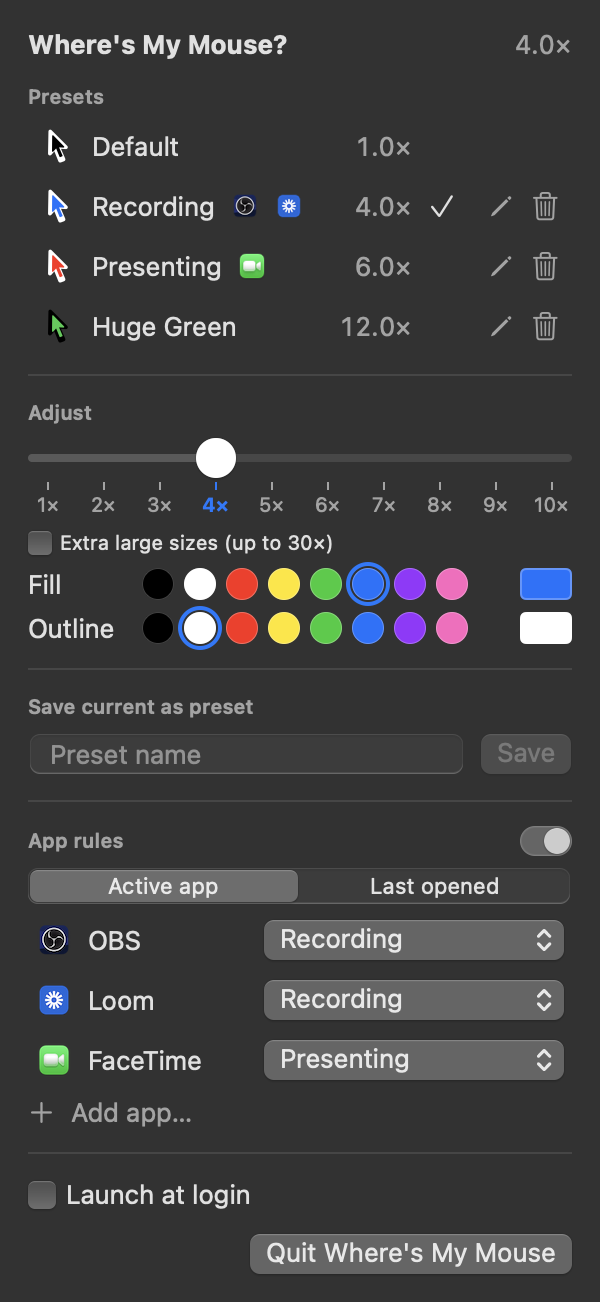
Everything in one little menu.
Presets with the apps pinned to them right on the row.
A size slider with marks from 1× to 10×, plus an extra-large mode to 30×.
Color swatches for fill and outline, or any custom color.
App rules that switch presets for you, then go back to Default.
🎥 Screen recordings🧑🏫 Tutorials📽️ Demos & talks📞 Video calls🧑💻 Pair programming👓 Low vision🖥️ Big & multi-monitor setups
What's new
v1.1.0current
New name: Where's My Mouse? App rules (per-app presets, active app or last opened), extra-large sizes to 30×, easier preset updates, rainbow menu bar icon.
v1.0.0
First release as BetterPointer: size up to 10×, fill and outline colors, presets, launch at login.
Questions, answered
Is it really free?
Yes. Free and open source under the MIT license. The code is on GitHub.
Why does macOS say it can't verify the app?
The app isn't notarized by Apple yet. After the first launch attempt, open System Settings → Privacy & Security and click Open Anyway. Or run xattr -dr com.apple.quarantine "/Applications/Where's My Mouse.app" once.
Why does it need Full Disk Access?
Only for colors. macOS keeps pointer colors in its accessibility settings and only lets apps with Full Disk Access change them. Size works without it. The app reads nothing else.
Does the big pointer show up in screen recordings?
Yes. We tested it in OBS. Plain screenshots are the exception: macOS draws the pointer at normal size in still screenshots.
How does it go past System Settings' 4× limit?
The window server accepts sizes up to just under 16× through an undocumented call, so that's the real pointer up to 15×. From 16× to 30× the app hides the real pointer and draws its own arrow that follows your mouse. That one is always an arrow (no hand or text cursor).
Why isn't it on the Mac App Store?
It uses private macOS APIs and changes system accessibility settings, which App Store apps aren't allowed to do. So it's a direct download, like most pointer tools.
How do I uninstall it?
Quit it from the menu, then drag it from Applications to the Trash. Your pointer goes back to whatever you last set; pick Default first if you want the normal pointer.